
MedSAM2 Advanced Medical Images and Video Segmentation
MedSAM2 Segmentation environment
MedSAM2 leverages advanced deep learning techniques to automatically detect and accurately delineate anatomical structures, organs, tumors, and other regions of interest in medical images.
💡The system operates through the following key capabilities:
-
Comprehensive Medical Coverage: Trained on a diverse range of medical datasets, encompassing normal anatomical structures and various pathologies across multiple imaging modalities, including different organs, lesions, and medical conditions.
-
Prompt-Based Segmentation: Accepts intuitive user inputs — such as points, bounding boxes, or text descriptions — to guide the model toward specific anatomical regions, powered by sophisticated prompt engineering.
-
Multi-Modal Imaging Support: Capable of processing a wide array of medical imaging formats, including CT scans, MRI, X-rays, ultrasound, and pathology slides, with robust generalization across different hospitals and imaging equipment.
-
Interactive Refinement: Enables iterative improvement of segmentation results through positive or negative prompts, combining AI automation with human expertise to enhance accuracy without replacing clinical judgment.
💡Step’s to Use MedSAM2 :
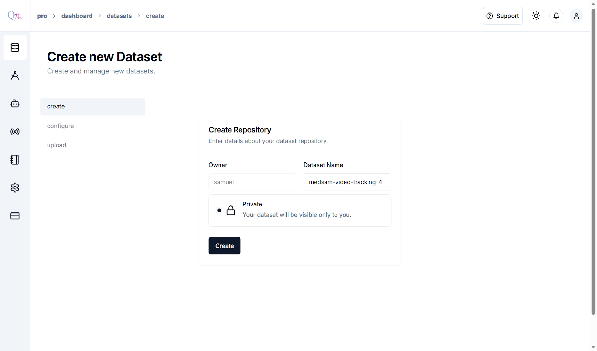
- Create a Dataset
-
Configure Dataset Details ‘After naming your dataset, you will be redirected to the configuration page. Specify the following details:
- Domain: Select Medical Imaging.
- Sub-domain: Choose the appropriate sub-domain (e.g., Cardiology). Example: For this guide, we will select Cardiology as we are uploading a heart MRI dataset.
- Data Type: Select Image.
- Task Name: Enter instance-segmentation.
- Description: Provide a concise description of your dataset.
- Class Names & Descriptions: Define each class name and its corresponding description relevant to your segmentation task.
-
Once the configuration is complete, click “Configure” to proceed to the dataset upload page.
-
For Video Segmentation: Upload the video files from your dataset directly to the platform.
-
Ensure that the videos are in a supported format and meet the platform’s quality and resolution requirements, Extract Frames (for Video Datasets).
-
-
Click on “Extract Frames”. A screen will appear with Preview and Proceed options.
-
The system will extract individual frames from your video files and display a preview.
-
Review the extracted frames to ensure quality and relevance.
-
Once satisfied, click “Upload Files” to continue.
💡Note: The extraction and upload process may take some time depending on the size of your dataset.
-
-
After the upload is complete, you will be redirected to the Preview Images page.
-
Finalize Frame Selection
- Review the extracted frames carefully and click “Lock and Proceed”.
This will redirect you to the Ready to Setup MedSAM page.
-
Start MedSAM Setup
- On the Ready to Setup MedSAM page, click “Start MedSAM Setup” to begin configuring the segmentation process.
-
Initial Annotation for Visual Prompt
- Wait a few minutes while the system processes your dataset and generates the initial annotations for visual prompting.Processing time may vary depending on the size and complexity of the dataset.
💡Note: While loading, Image 1 will appear first in the preview pane. Once it finishes loading, the system will move to the corresponding task and Image 2 will display.
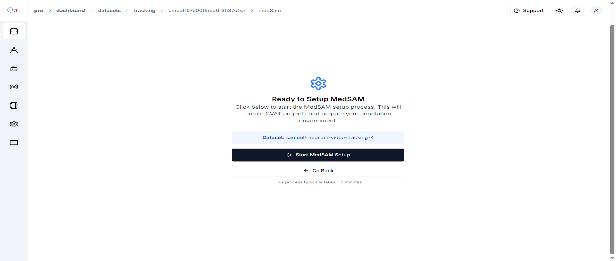
Image 1
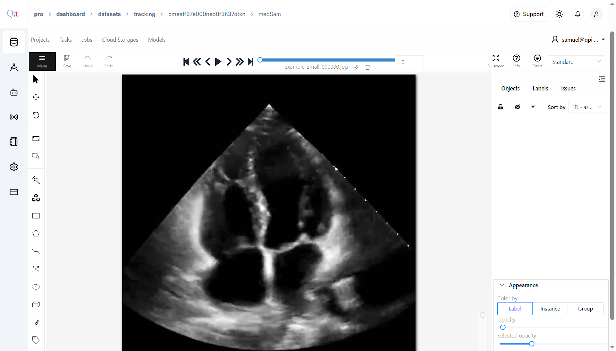
Image 2
-
Click “Annotation” in the toolbar.
- Select “Draw New Polygon” from the available options.
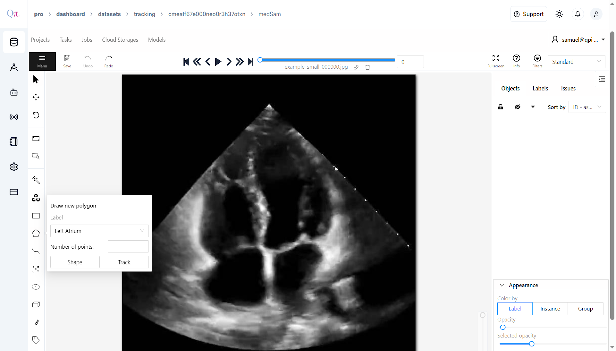
- On the displayed image, click to place points around the target area, forming a polygon that outlines the region of interest.
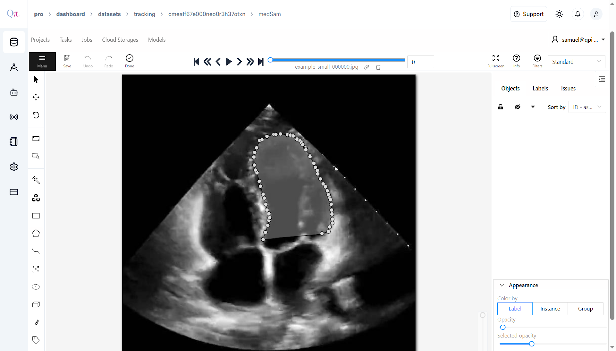
- Ensure that each polygon corresponds to the classes you defined during dataset creation, providing accurate visual prompts for segmentation.
- Continue to draw polygon points for the classes you want to annotate manually.
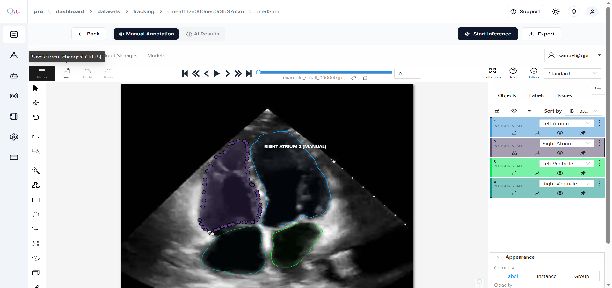
-
Save Manual Annotations & Start Inference
-
Once your manual annotations are complete, click “SAVE” to store them in the system.
-
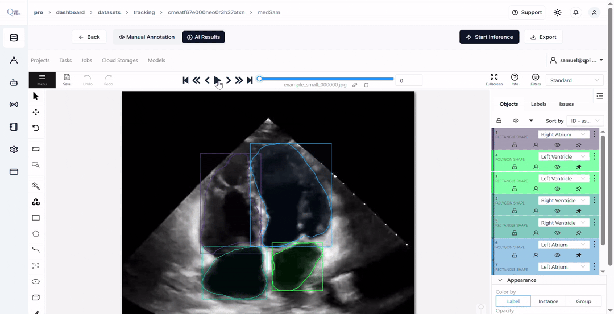
After saving, click “Start Inference”.
-
MedSAM2 will automatically run inference on the entire dataset using the visual prompt you provided on the first frame.
-
Inference time will vary depending on the size of your dataset.
-
The progress of the inference will be displayed in real time.
-
-
Review Annotated Frames
-
Once inference is complete, you will be redirected to a page showing the generated annotations for all frames.
-
Carefully review the annotations and make any necessary refinements for accuracy.
-
-
Export the Annotations
- On the review page, click the “Export” button.
- Confirm the export action.
- The annotated dataset will be downloaded to your system for further use.
💡 This completes the MedSAM2 workflow in QPIAI Pro, providing an efficient and accurate solution for video segmentation.