Data Healthcheck for CV
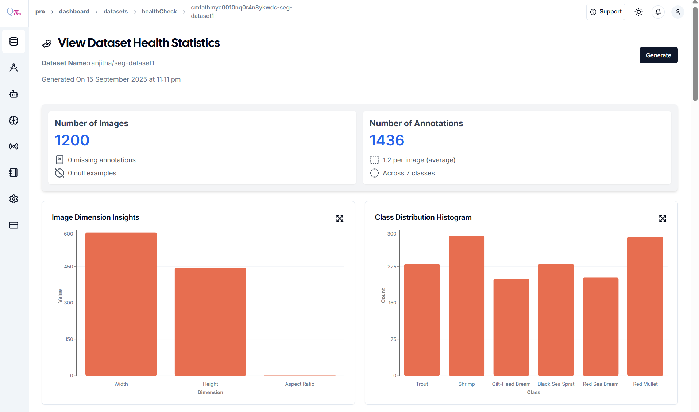
The Dataset Health Check provides a detailed analysis of the dataset’s statistical view and quality metrics for the project’s objectives.
Note: After extracting the video, we obtain images. The same health check process outlined in Step show below should be applied to all the resulting data
💡To initiate a Data Health Check, follow these steps:
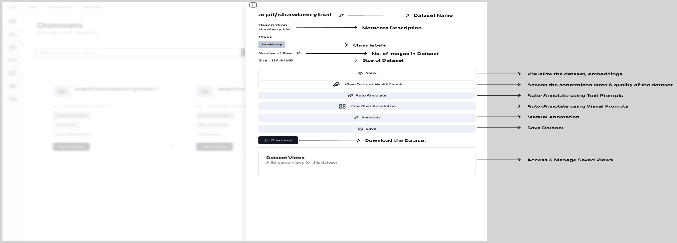
- Go to the Datasets.
- Click on “ View Details “.
-
After Clicking on View Details, Select “ View Dataset HealthCheck Statistics”.
-
Here the following pieces of information and Explained detailing how each works and why it is essential:
- Number of Images : Total count of images available in the dataset folder.
- Number of Annotations : Total count of annotations present in the dataset folder
-
Image Dimension Insights : Insights on image dimensions.
-
Class Distribution Histogram : Distribution of annotations across different classes.
-
Class Balance : Distribution of annotations across different classes, showing balance or skewness.
-
Outlier Metrics Summary : Provides a summary of data points that deviate significantly from the rest of the dataset, highlighting potential anomalies or errors.
-
Area score distribution : Measures the distribution of object sizes within images, indicating how well objects of varying sizes are represented.
-
Aspect Ratio score distribution : Evaluates the distribution of aspect ratios (width-to-height ratio) in images, ensuring diverse shape representation.
-
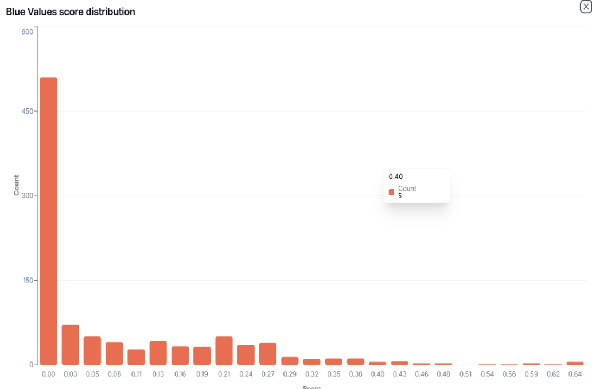
Blue Values score distribution : Analyzes the distribution of blue channel intensity values across images, assessing color balance and consistency.
-
Blur score distribution : Indicates the level of blur in images, assessing the clarity and focus quality of the dataset.
-
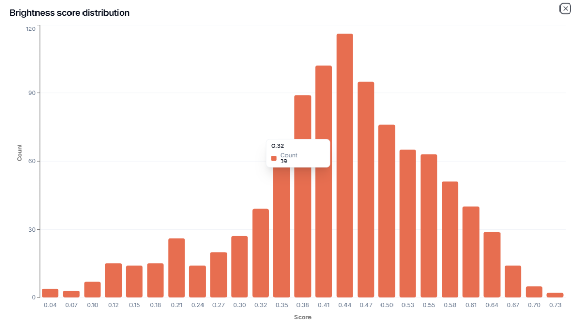
Brightness score distribution : Measures the distribution of brightness levels in images, helping to identify underexposed or overexposed content.
-
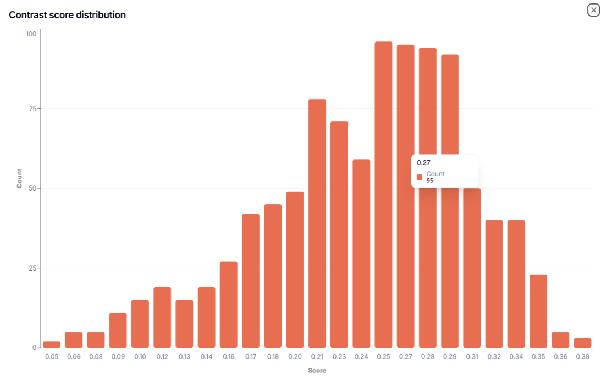
Contrast score distribution : Evaluates the distribution of contrast levels in images, determining the visual distinction between light and dark area.
-
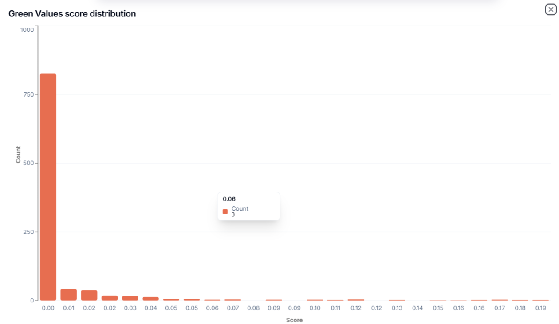
Green Values score distribution : Analyzes the distribution of green channel intensity values, contributing to the overall color balance evaluation.
-
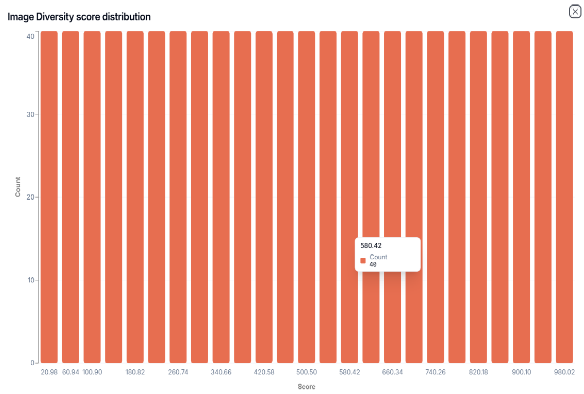
Image Diversity score distribution : It provides an understanding of how distinct each image is relative to the others, ensuring that the dataset captures a wide range of scenarios, patterns, or characteristics.
-
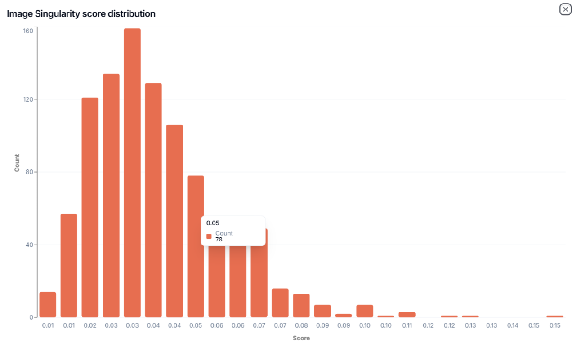
Image Singularity score distribution : Measures how unique or distinctive each image is compared to the rest, identifying potential duplicates or overly similar content.
-
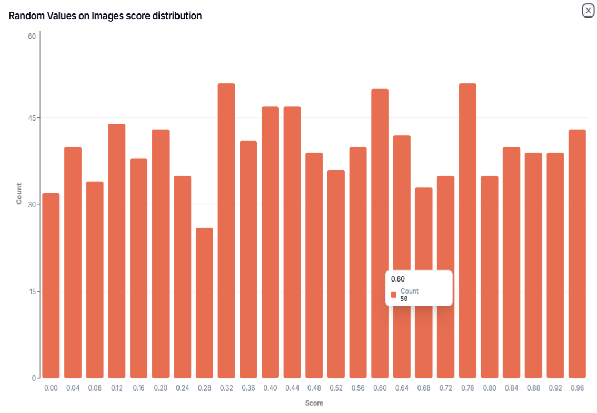
Random Values on Images score distribution : Evaluates the distribution of randomly selected pixel values, serving as a control metric for noise or unintended patterns.
-
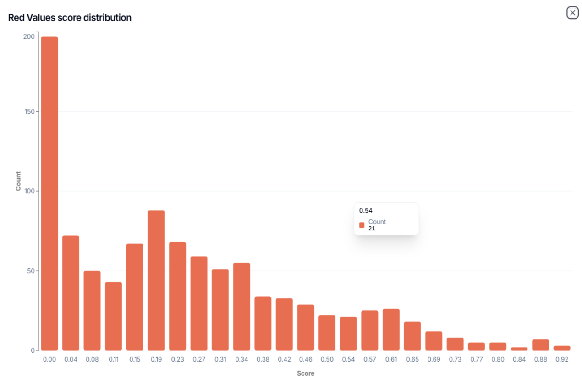
Red Values score distribution : Analyzes the distribution of red channel intensity values in images, contributing to the assessment of color balance.
-
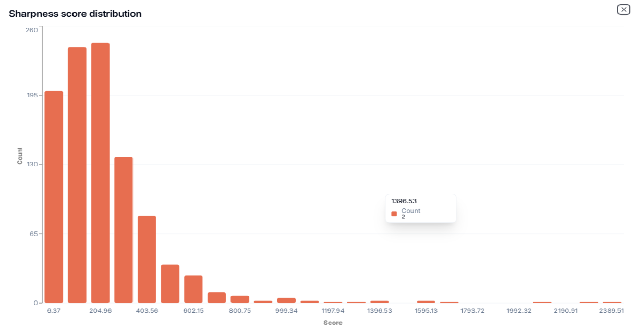
Sharpness score distribution : Measures the distribution of image sharpness, indicating the level of detail and clarity across the dataset
💡 Note: IF you observe class imbalance in your dataset, where one class has a significantly higher count than the other (for example, in a two-class dataset, one class is overrepresented), it may lead to biased model training and reduced performance. To mitigate this, we have an option called +Generate. This will help ensure your dataset is properly balanced, minimizing the risks associated with skewed class distribution.
💡 Steps for “Generate +“
- Before Clicking on “ Generate”, Go Back to Dataset.
- Upload Raw Images as per your requirements.
- Use “Auto Annotate”to automatically annotate the newly uploaded images, or “Manually Add” the JSON and image folders if annotations already exist.
- Click “Generate”
- This will trigger the dataset balancing process.
- “View” Updated Health Statistics
- After the balancing process is completed, the updated health statistics will be displayed, reflecting the adjustments made for class distribution
- Save the newly balanced dataset. It is now ready for Visualization.